
Chapter 5 / 30 · Start and find your way
Find your way around and choose the right organisation
The menu follows your role and organisation mode. A missing section may reflect a permission you do not have.
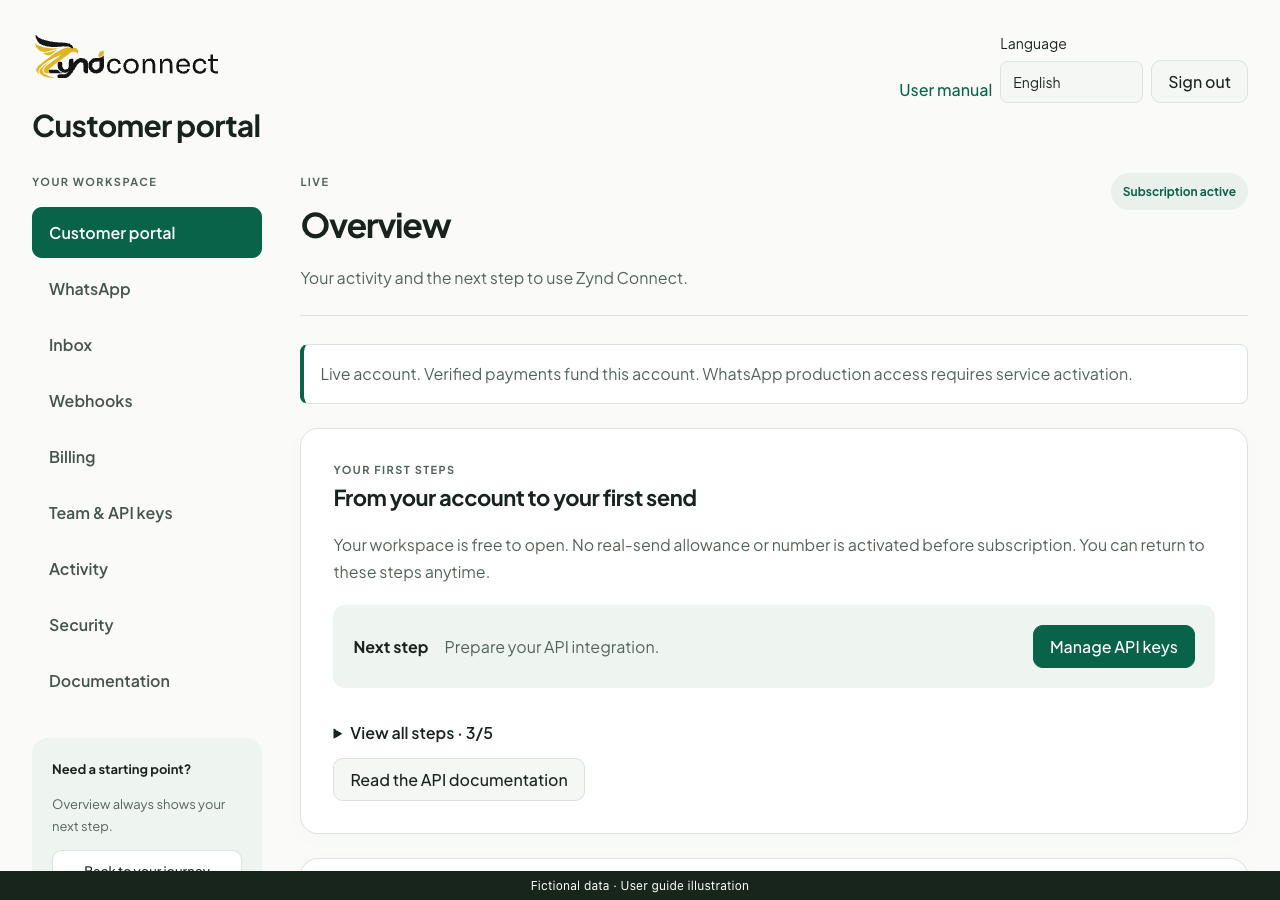
The portal menu
| Section | What it does |
|---|---|
| Overview | Your organisation, balance, projects and next step. |
| Create, link and manage connections; send an initial text. | |
| Inbox | Read retained conversations, download attachments and reply. |
| Webhooks | Forward events to tools and inspect failures. |
| Billing | Plans, quotes, top-ups, renewal, terms and refunds. |
| Team & API keys | Invitations, roles and software access; owner only. |
| Activity | Track the latest 50 operations and offered cancellations. |
| Security | Your password, sign-in factors, sessions and data management. |
| Documentation | Integration reference for the person configuring your tools. |
Switch organisation or language
- If you belong to several organisations, use the organisation selector at the top of the portal. It does not appear if you have only one.
- After switching, check the name, role and Live or Sandbox mode. Balance, connections and keys belong to the selected organisation.
- Use the language selector. This manual is also available in Français or English, with matching chapters.
- On a small screen, use the navigation dropdown. Back to conversations returns to the inbox list.
Roles: who can do what?
| Role | Use |
|---|---|
| Owner | Manages team, keys, projects, numbers, sending and billing; can export and request closure. |
| Developer | Manages connections, sends and replies, configures webhooks; does not manage the team or authorise billing debits. |
| Billing | Manages plans, top-ups and refund requests; WhatsApp, Inbox and Webhooks sections are not offered. |
| Read only | Views information allowed by their access; does not connect a number, send or change settings. |