
Chapter 16 / 30 · Team and access
Invite and manage your team
The owner manages members in Team & API keys. Roles determine what each person can do.
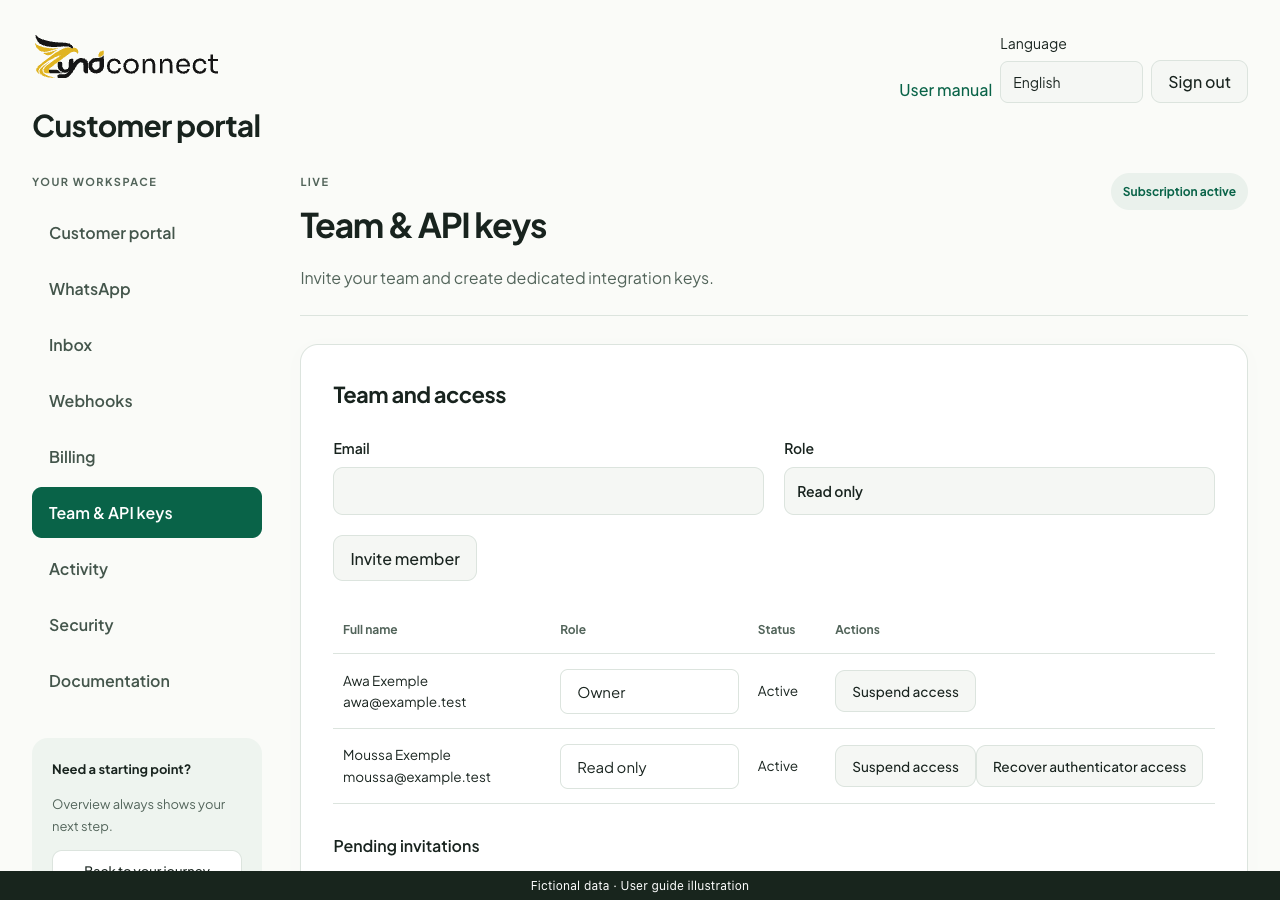
Invite a person
- Check your plan’s team limit and existing pending invitations.
- Open Team & API keys and the Team section.
- Enter the member’s work email and choose Read only, Billing, Developer or Owner for their job.
- Select Invite. The portal confirms that the email is queued; this does not prove it was read.
- Ask the person to open their email and follow the invitation. Then check that they appear among active members.
Change permissions and suspend access
The list shows name, email, role and status. Change the role using the selector on the relevant row, then check the result.
Suspend removes a member’s access; Restore lets them resume under their role and organisation limits. Member suspension does not delete the whole organisation.
Pending invitations shows recipient, role, expiry and email delivery state. Revoke invalidates an unused invitation. To correct an address or role, revoke the old invitation and prepare the correct one.
Keep at least one active owner able to manage the organisation. Do not remove your only administrative access without arranging a replacement. Service protections may refuse that change.
Example division of responsibilities
A business lead receives Owner. The person handling payments receives Billing. The person connecting tools and handling conversations receives Developer. Someone who only needs to view receives Read only.
Do not share a single account among several employees. Individual access lets you remove one person without changing the entire team’s password.