
Chapter 21 / 30 · Security and data
Protect access: authenticator and passkeys
Security protects your personal account. WhatsApp settings are separate from devices used to sign in to the portal.
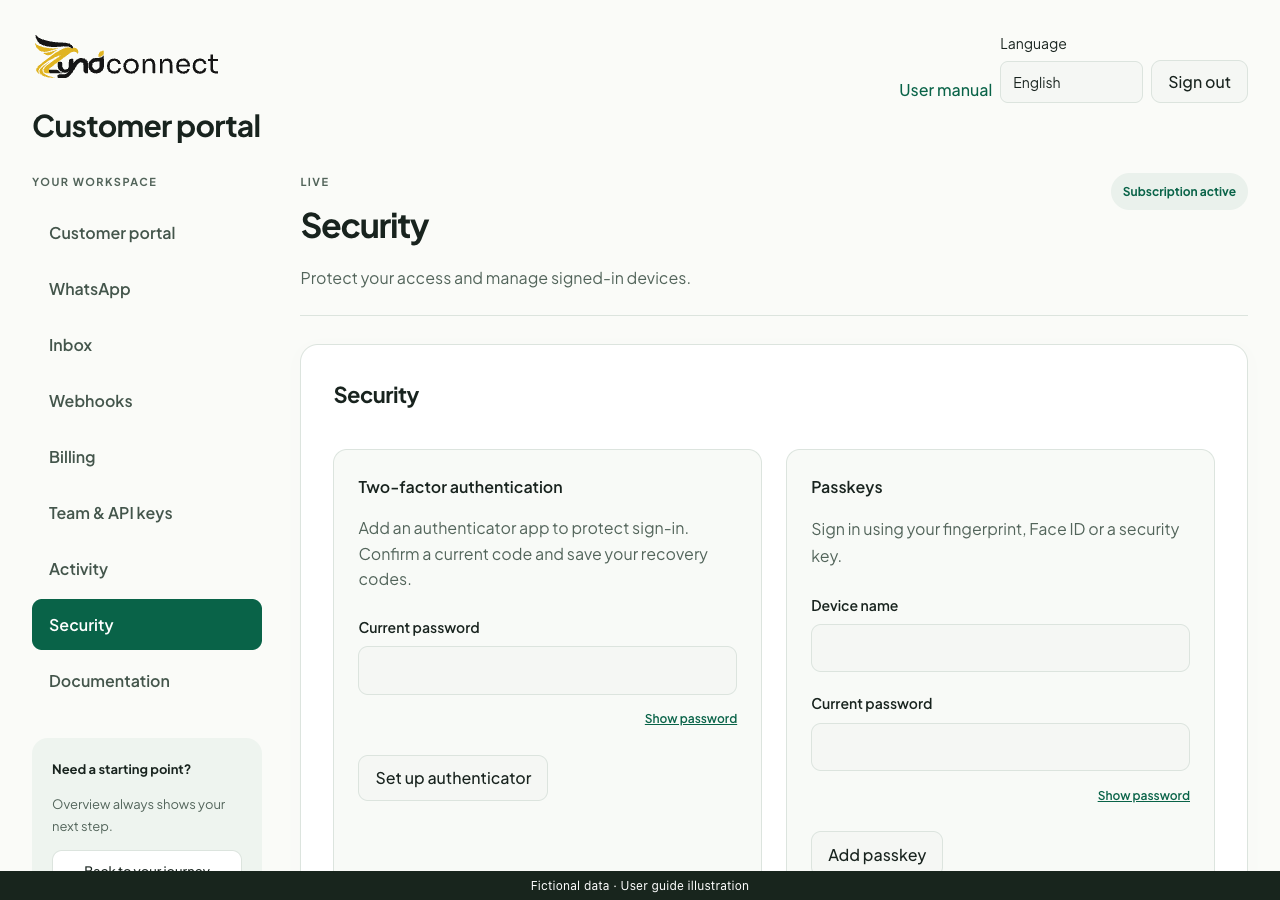
Add two-factor authentication
- Open Security and the Authenticator card.
- Enter your current password and select Set up authenticator.
- In your authenticator app, add the account using the QR. Manual entry is offered if needed. Keep the secret private.
- Enter the requested code before the displayed setup expiry and confirm. If the deadline passes, start setup again.
- Check enabled status. Save recovery codes securely somewhere accessible even if you lose the phone.
- Select I have saved the codes only after saving them. A used recovery code must not be reused.
Add a passkey
- In Security, open Passkeys. Give the device a clear name.
- Enter your current password and two-factor proof if requested.
- Select Add passkey and follow the browser confirmation: fingerprint, Face ID, device code or security key as offered.
- Check that the passkey appears with its name and date. Then test passkey sign-in.
- If you cancel the prompt, try again when ready. If the browser is incompatible, use another available method.
Remove a factor without losing access
Before removing a passkey or disabling the authenticator, check that another method will let you sign in again. Read confirmations: some actions revoke sessions and sign you out.
Passkey removal requires the password and offered proof. Disabling the authenticator requires the password and code. Never share security QR codes, secrets, passwords or recovery codes with support.