
Chapter 11 / 30 · WhatsApp and conversations
Connect your WhatsApp number
First create a connection in your workspace, then link your phone. The connection must be ready before sending.
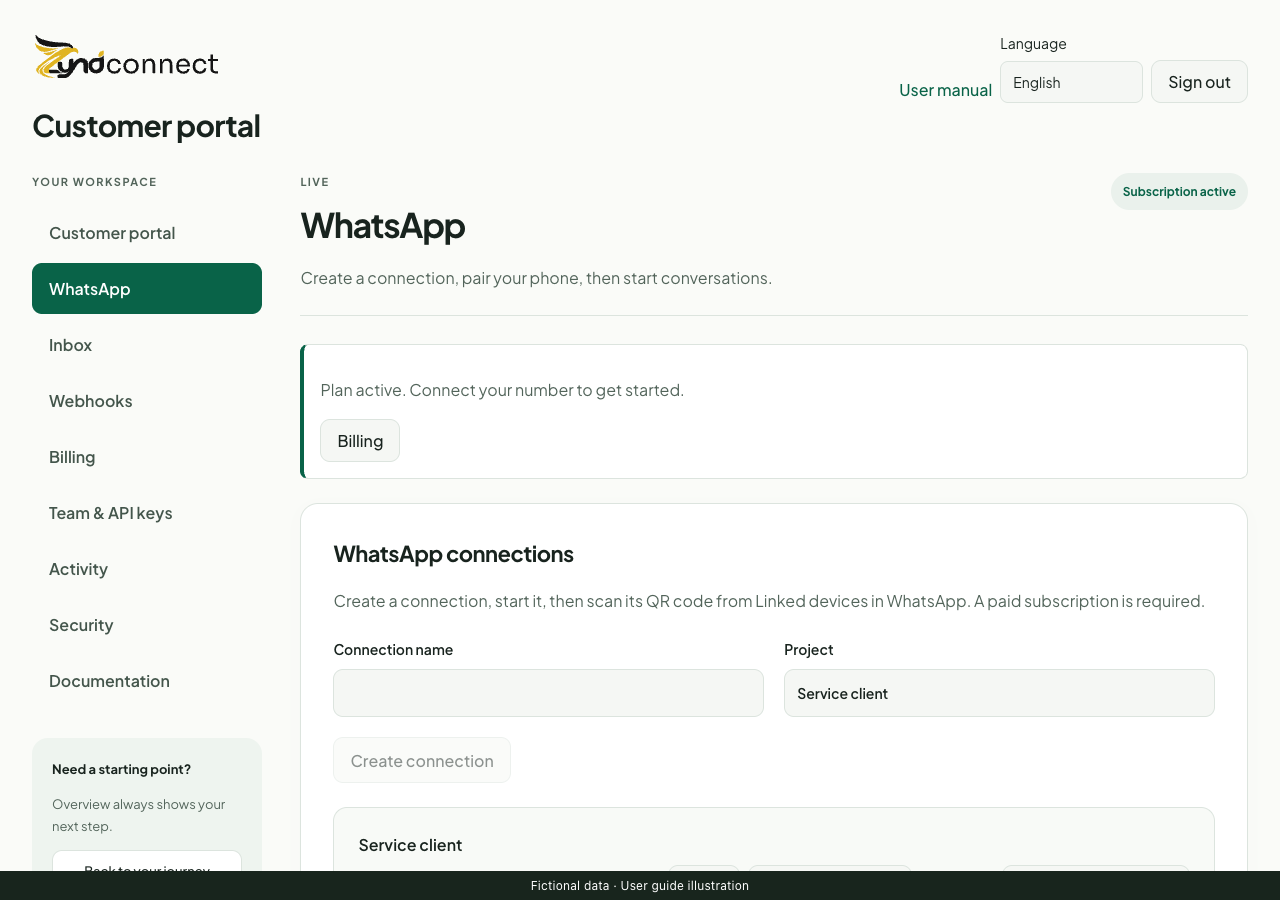
Create and start the connection
- Check that the plan is active and a number slot is available. You must be an owner or developer.
- Open WhatsApp. Give the connection a clear name such as Shop reception and choose the project.
- Select Create connection. If the response is uncertain, use Retry on that same request; do not create several connections for one attempt.
- Select Start on the connection card. Wait for the status change.
- When the QR is available, choose Open QR. Keep it visible on another device if you scan it with your phone.
Link the phone
- Open WhatsApp on the phone with the relevant number.
- Open Linked devices in WhatsApp settings or its menu, then choose Link a device. Exact labels can vary by phone.
- Scan the QR displayed in Zynd Connect and approve linking on your phone.
- Return to the portal. Wait for Ready and check that the correct number appears.
- If the QR expired or linking does not finish, refresh the state, open a current QR and try again.
Understand connection states
| State | Useful action |
|---|---|
| Created / allocating | The connection exists or is being prepared. Use Resume if offered. |
| Initialising / authenticating | Startup or linking is in progress. Wait and refresh. |
| QR available | Open the QR and scan it with the phone. |
| Ready | The number is linked and can handle authorised sends. |
| Stopped / disconnected | Start the connection. A new QR may be needed if the device was unlinked. |
| Failed / unavailable / restricted | Read the reason. Open WhatsApp if an action is required; contact support if it persists. |
| Removing | Wait for removal to finish before creating a replacement. |