
Chapter 14 / 30 · WhatsApp and conversations
Manage conversations and switch WhatsApp numbers
Read your conversations in an inbox that updates automatically. The number selector lets you work with each of your connections while keeping their messages separate.
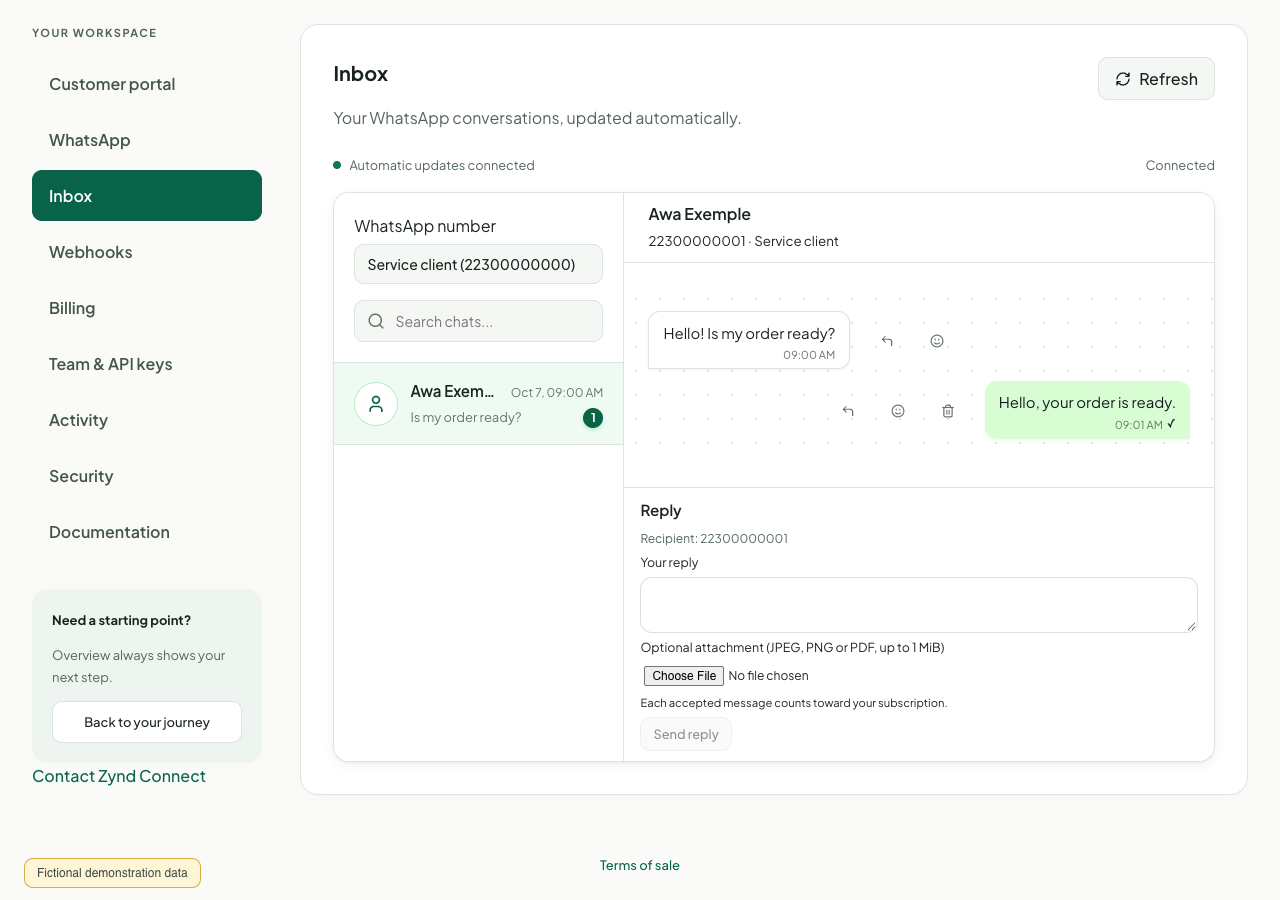
Open the right conversation
- Open Inbox. The first available number is selected automatically, with a ready connection given priority.
- Under WhatsApp number, check the connection name and phone number. Choose another connection to view its conversations.
- Search the loaded conversation list by name, number or message preview, then select a conversation. Badges show unread messages when WhatsApp provides that information.
- Use Load more to see additional conversations. Scroll up within a conversation to load earlier messages when available.
- New messages, delivery updates and conversation changes appear automatically. Automatic updates connected means your browser receives those updates; the WhatsApp number’s connection status appears separately.
- Refresh lets you reload when needed. On mobile, the back button opens the conversation list and number selector. Switching numbers clears the selected conversation to avoid replying to the wrong recipient.
Reply with text or a file
- Choose an individual conversation or a group already present in your inbox. Check that the WhatsApp number is ready and your role allows sending.
- Under Reply, check the displayed recipient. Enter your reply: up to 4,096 characters without a file.
- To reply to a specific message, select Reply on its bubble. The quote appears above the form; Cancel reply removes it before sending.
- To attach a file, choose a non-empty JPEG, PNG or PDF up to 1 MiB, or 1,048,576 bytes. The filename must not exceed 120 characters; the caption limit is 1,024 characters.
- Check the selected file. Remove attachment lets you replace it before sending.
- Select Send reply. You can send a file without text. The message follows the same counting rules as other sends.
- Use Refresh status to inspect the result. If confirmation is uncertain, Retry the same request keeps the original destination and content.
Reactions, unread messages and deletion
When your role allows sending and the number is ready, the reaction button on a message offers several emojis. Choose one to react in the WhatsApp conversation. Received reactions appear with the message.
Opening a conversation with an authorized role can mark it as read in WhatsApp. A viewer can read messages without sending replies or read receipts from the portal.
To delete one of your sent messages, select its delete button and confirm. The request targets all participants and remains subject to WhatsApp’s capabilities. This command cannot delete another participant’s message. A removed message appears as deleted when its updated state is available.
A disconnected number keeps retained history readable. Replies and WhatsApp actions require a ready connection. If your connection access changes or your session expires, sign in again; an open screen is not proof of current access.
Download and find messages
A message with an available file offers Download attachment. Save items you need before retention expires. Account export does not replace downloading files.
Recorded history may remain readable when the phone is disconnected. This does not guarantee that all old phone conversations are imported. Your plan’s history and storage rules apply.
An empty list may mean the wrong connection, no recorded messages yet or data removed under retention. A loading error needs a refresh; it does not necessarily mean there are no messages.